Step 05

Configure Dalia

Tailor Dalia to your project before your first generation.

01

Check your environment

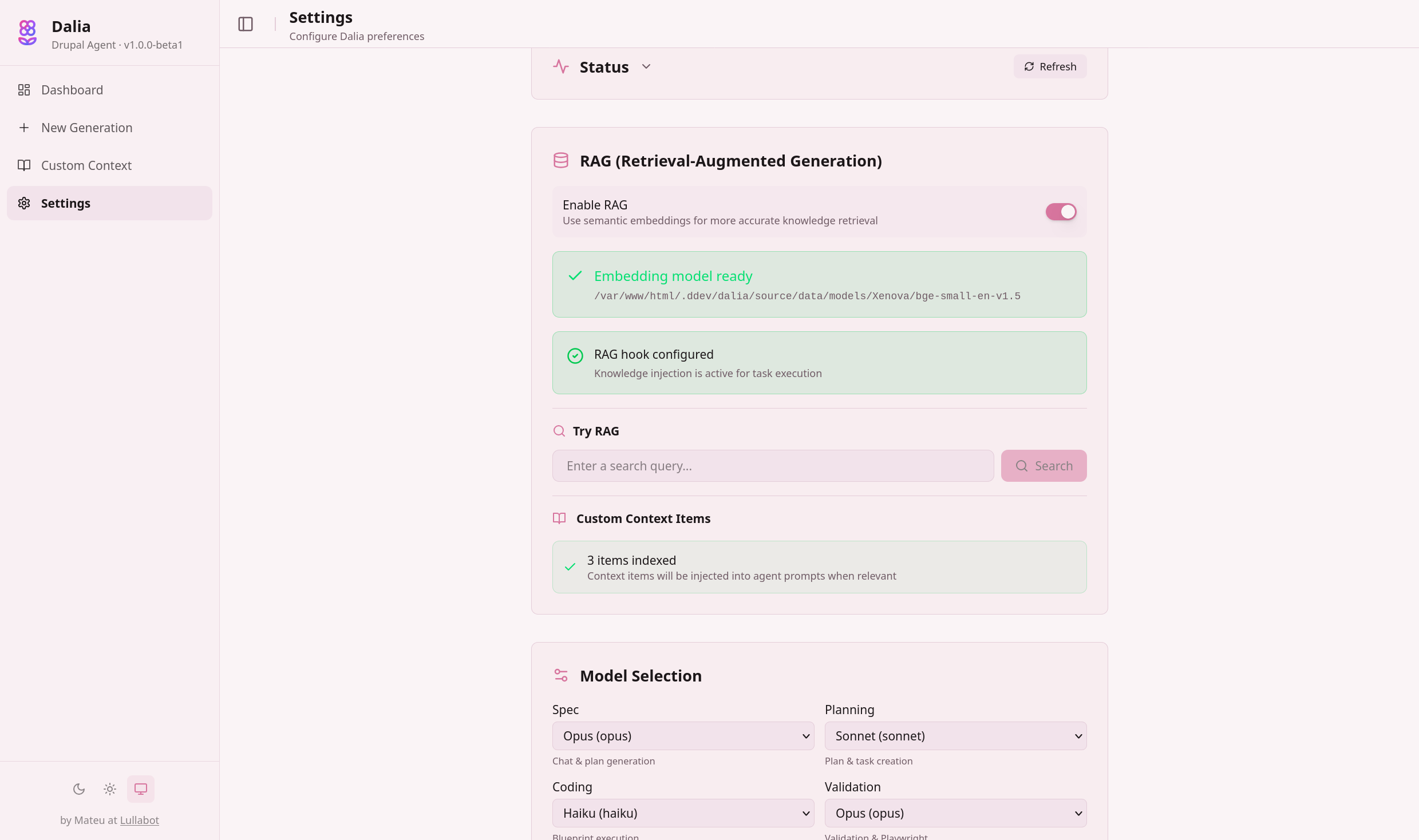
Open Dalia in your browser using the URL from ddev describe and navigate to Settings. The Status section at the top validates your setup. Four checks need to be green before you proceed:

  • CLI Status — Claude CLI is installed and your account is authenticated
  • AI Task Manager — detected at the expected path
  • DDEV Environment — app root configured, Drupal site accessible, Drush available
  • Custom Context Items — shows indexed count once RAG is enabled (optional at this stage)

If anything is red, fix it before continuing. CLI auth issues usually resolve by re-running ddev exec claude. DDEV issues need ddev restart. The Status section collapses automatically once all checks pass.
02

Select your Claude models

Dalia's pipeline has five stages, and each can use a different Claude model. This lets you balance reasoning power against speed and token cost.

Stage What it does Recommended
Spec Refines your requirements through conversation Opus
Planning Creates the implementation plan Opus
Tasking Breaks the plan into executable tasks Sonnet
Coding Writes the Drupal code Sonnet
Validation Runs Playwright and Drush checks Sonnet

Use Opus where reasoning quality matters most (spec, planning) and Sonnet where throughput matters (coding, validation). Models are fetched at runtime — you can change them between generations without restarting.

Settings › Model Selection
Dalia settings page showing model selection dropdowns for each pipeline stage
03

Enable RAG

RAG (Retrieval-Augmented Generation) injects relevant Drupal documentation and your project context into agent prompts. When enabled, Dalia retrieves the most relevant knowledge files based on what you're building — improving spec conversations, planning, and code quality.

Three steps to enable it:

  1. Toggle Enable RAG on in the Status section
  2. Click Download Model to install the embedding model (~33 MB, one-time)
  3. Once ready, use Try RAG to test a query and see which documents it retrieves

RAG is optional — Dalia works without it. But it makes a noticeable difference for complex Drupal tasks where the agent needs to understand entity APIs, plugin systems, or render pipeline details.

04

Add Custom Context

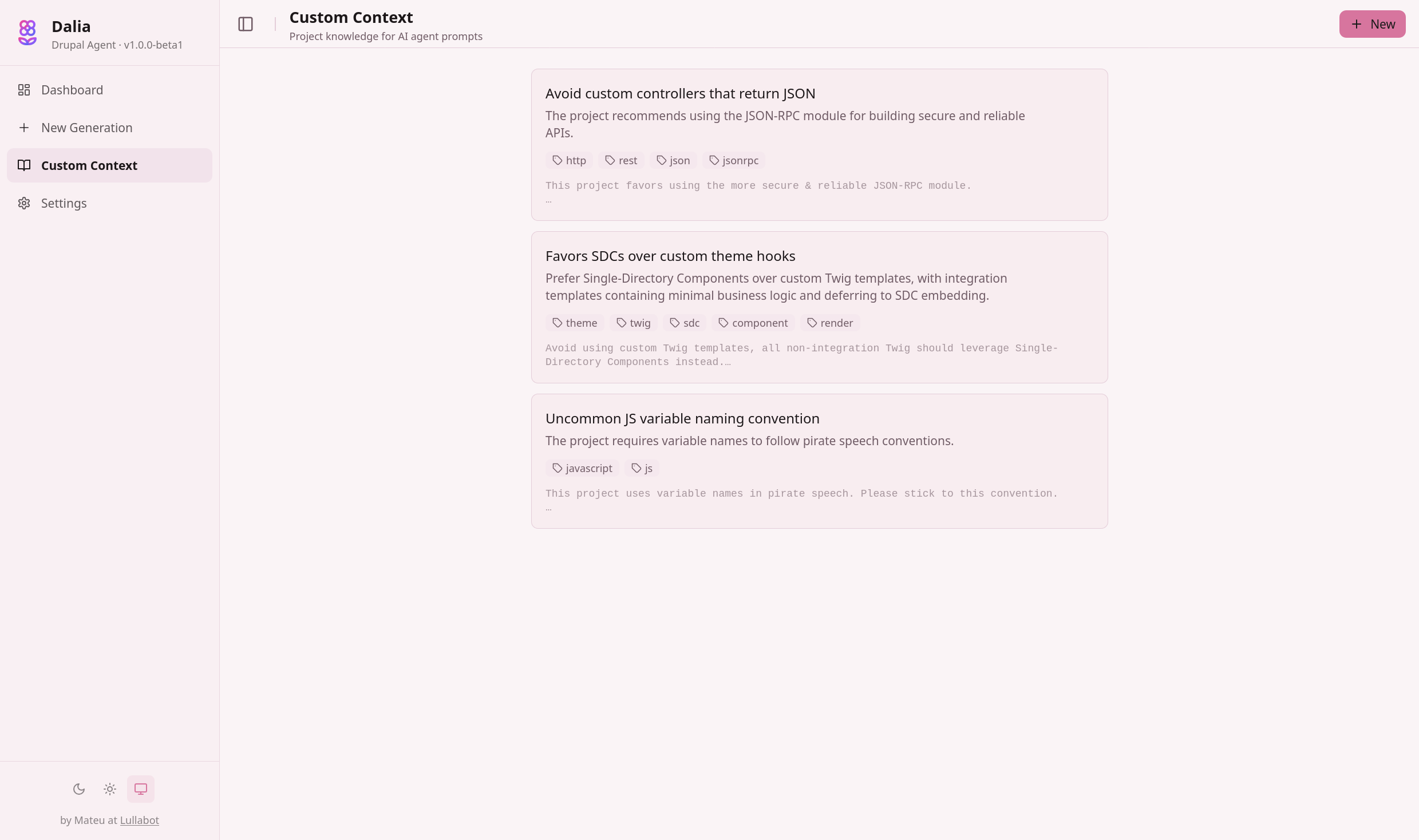
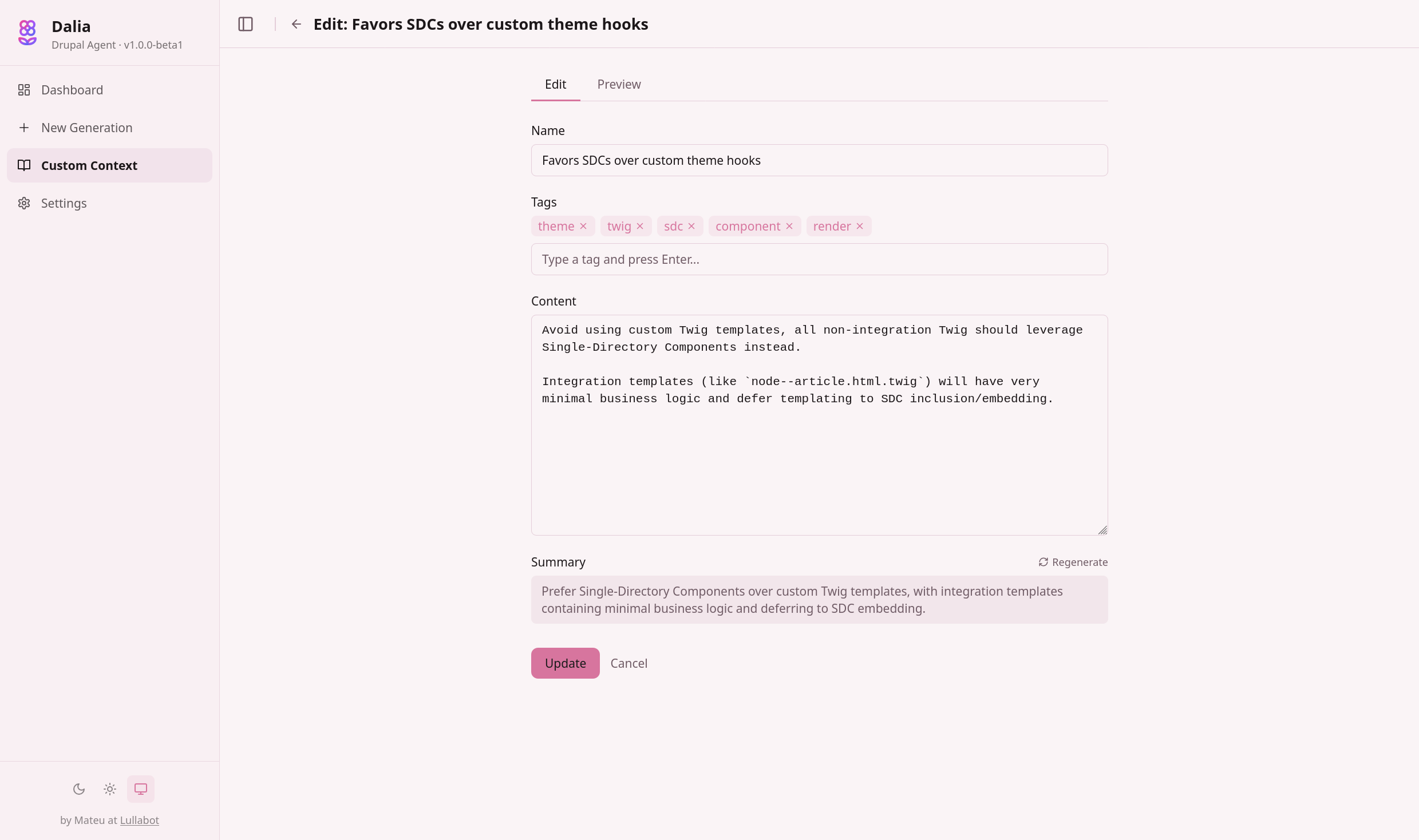
Custom Context lets you teach Dalia about your project's conventions, architecture decisions, and preferences. Each context item is a markdown document with tags. Dalia surfaces relevant items during spec chat, planning, and code execution via RAG.

Navigate to Custom Context in the sidebar to create items. Each has a name, tags, markdown body, and an auto-generated summary. Some examples:

  • "Favor SDCs over custom theme hooks"
  • "Avoid custom controllers that return JSON — use JSON:API"
  • "JS variable naming follows private speech conventions"

Learn more about Custom Context — how it works with RAG, benefits, and trade-offs.

Custom Context
Custom Context page showing a list of project-specific context items with tags
Custom Context › Edit
Editing a custom context item with name, tags, markdown content, and auto-generated summary
05

Configure Playwright

Dalia uses Playwright for browser-based validation — it launches a headless browser, navigates your Drupal site, and runs generated test scenarios against the code it wrote.

The Playwright Configuration section in Settings lets you:

  • Set the test directory (default: $DDEV_APPROOT/test/playwright)
  • Set the config file path (default: $DDEV_APPROOT/playwright.config.ts)
  • Click Verify Playwright to run a four-step diagnostic

If verification fails, ddev exec npx playwright install chromium --with-deps usually fixes it — the add-on installs Playwright automatically but occasionally needs a manual reinstall.

06

Choose your theme

Pick Dark, Light, or System in the Appearance section. The change applies immediately. Purely a visual preference — choose whichever fits your working environment.

You're configured.

Head to the Dashboard and create your first generation. Dalia will guide you through the spec conversation, then autonomously plan, implement, validate, and present the code for your review.